

With so many advanced settings, how will you customize your ZEN72?
Zooz products are now officially integrated with the new ZWaveJS integration of Home Assistant. If you're experiencing issues with accessing the advanced settings of your ZEN72 Dimmer we would recommend first updating to the JS integration then excluding and re-including your device to your network in order for it to be recognized correctly.
All About Advanced Settings
The terminology for advanced settings varies depending on your Z-Wave hub; Home Assistant uses the official term “Parameters.” Despite these differences in naming, the purpose remains the same: configuring consistent behavior for your device. We provide the full list of settings available for each device in our Knowledge Base.
Each advanced setting consists of four key parts:
-
Label: If your device is properly integrated with your hub, this will display as the setting's name. Hubs like SmartThings show only the label and description.
-
Parameter Number & Description: Most hubs, such as Hubitat and Home Assistant, list the parameter number along with the label and description.
-
Values: These are the selectable options for each setting. Some are simple (e.g., Enable/Disable), while others use numerical values.
-
Size: This is required in some systems when manually changing advanced settings (e.g., Home Assistant) or in hubs that do not provide direct access to settings.
Accessing the Settings
To access the parameters for the ZEN72:
-
Settings > Devices & Services > Z-Wave.
-
Click on the ZEN72 > under Device Info, click Configure.
Manual Parameter Changes
All of the ZEN72's advanced settings should be available, but if a device is in beta release or had a recent firmware update, it may still need to be integrated for certain settings and parameters. There is another way to make adjustments to your device's settings in the meantime.
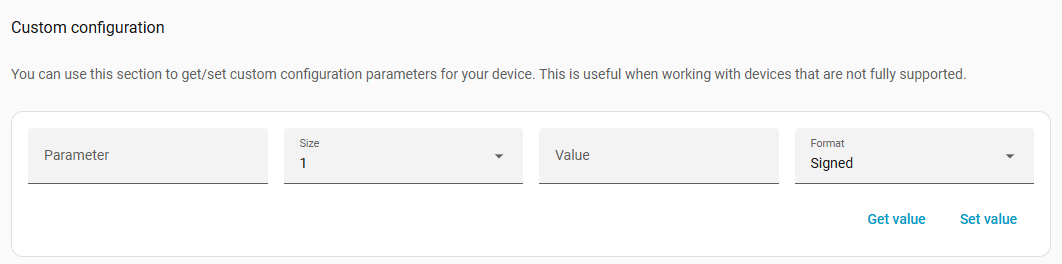
You can now change any parameter manually on the JS Z-Wave integration for Home Assistant.
-
Follow the steps above to access the parameters.
-
Scroll down below the exposed settings for the device to the Custom Configuration section, where you'll see Parameter, Size, and Value.
-
You can enter the data according to the product documentation and click SET for the parameter to be updated.
Send us a message if you have any questions or need help with your ZEN72! We'll be happy to help.

