


If you encounter any issues including the ZEN77 S2 Dimmer to Alarm.com, give the exclusion process a try first.
Z Wave devices can be excluded from a network at any time, even if they were never successfully included or were previously paired to a different hub. Running an exclusion simply resets the device’s Z Wave pairing status so it is ready to be added to your hub. This step is safe to perform and is often recommended as a first troubleshooting step during installation.
ZEN77 Exclusion Steps
If the device has never been included, you'll need to put the hub in exclusion mode, so you will access a currently included device in order to do so. Don't worry, this doesn't remove the device you are clicking on, it's simply a way to access exclusion mode for your Alarm.com hub.
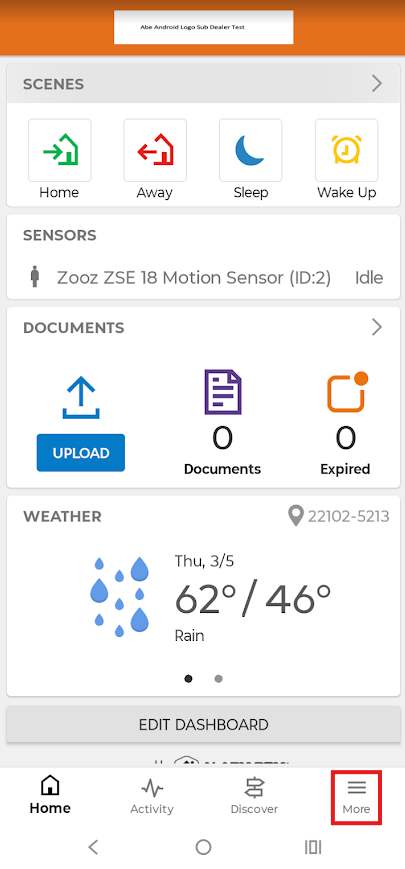
1. From the Home screen, click More.
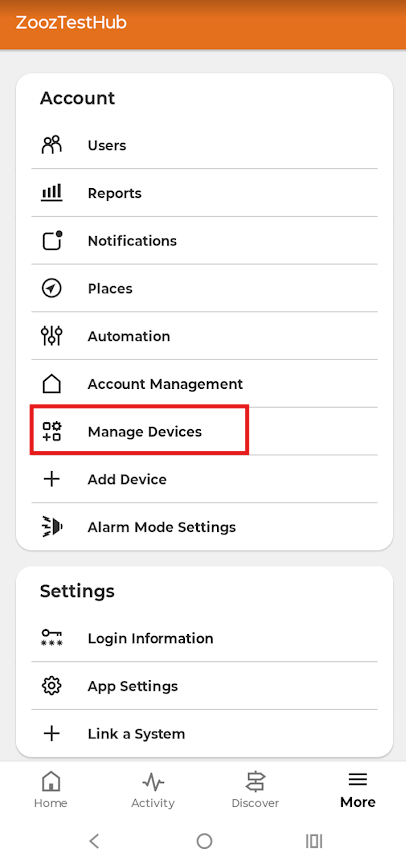
2. Select Manage Devices.
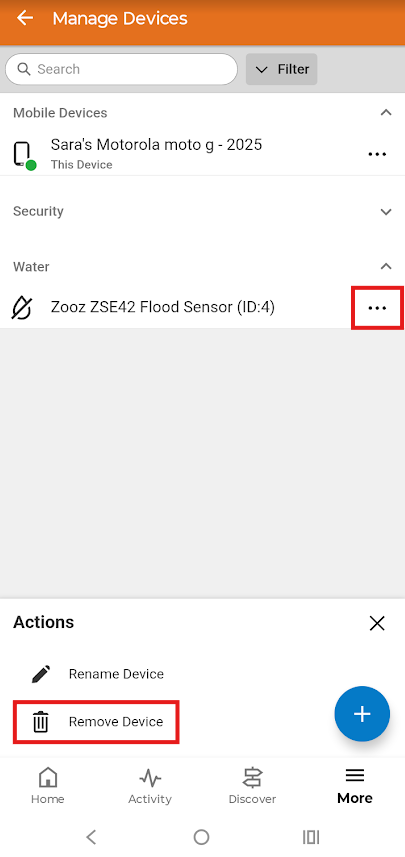
3. From any currently included device, click the 3 dots on the right. Select Remove Device (this will not remove the device you have selected unless you initiate exclusion mode on the device itself).
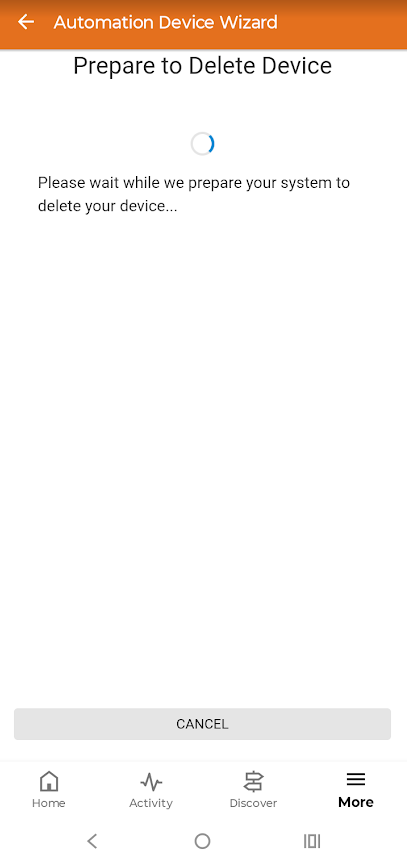
4. Exclusion mode has been activated on your hub. Click the lower paddle on the ZEN77 Dimmer 3 times quickly to activate exclusion mode. The LED indicator on the dimmer will begin blinking blue to indicate communication.
5. Your hub will confirm that an Unknown Device was deleted.
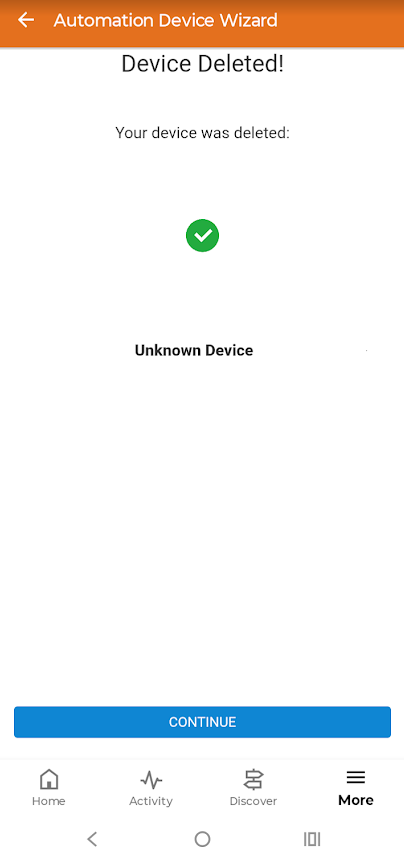
Once exclusion has been confirmed, you should now be able to include your dimmer to Alarm.com.
Additional Troubleshooting
If exclusion does not allow for inclusion, check out these steps below.
-
Try exclusion again and verify the LED indicator on the dimmer is blinking. If it is not, ensure you are clicking 3 times quickly.
-
If the LED indicator still does not respond, try a factory reset prior to attempting inclusion again.
-
If the LED is responding as expected to inclusion, exclusion, and reset but you're still unable to include, try bringing the hub closer to the dimmer if possible to rule out any range or interference issues.
If you have any questions, let us know! Our team is ready to help.

