

While the ZEN77 S2 Dimmer can be added most alarm panels, Alarm.com automation hubs in particular have integrated the device to ensure correct display and access to the multi-tap functionality. With compatible Alarm.com systems* you will have access to 6 scene triggers per paddle, for 12 total scene triggers. While you can't trigger a specific device, the ZEN77 paddles can activate any scene in your Alarm.com system, as well as control the connected lights.
Please note that Alarm.com is simply the cloud platform and mobile app used to access and manage your system remotely. It provides the automation, notifications, and account management, but it is not the physical Z Wave controller in your home. The actual controller is the hardware installed on site, which may be an Alarm.com automation hub, a security panel from Qolsys, a security panel from 2GIG, or another compatible gateway. This hardware determines which Z Wave devices can be added, how they appear in the interface, and which features are supported.
Full compatibility for any device depends fully on the specific hub or panel firmware you have installed in your home. While the ZEN77 can be inlcuded to most alarm panels and function as a basic dimmer, the scene control function and full integration is only available on the specific automation hubs listed below (still no access to the advanced settings).
You can read more about Alarm.com compatibility specifically here.
Programming Steps
First, you'll want to ensure the scene you would like to trigger has been created, or you can use your default scenes to be triggered by the ZEN77. While you cannot trigger a specific device using the ZEN77, you can trigger any scene on your Alarm.com hub.
1. From the Home screen, click More on the bottom right hand side.
2. Select Automation.
3. Click + Add New Rule.
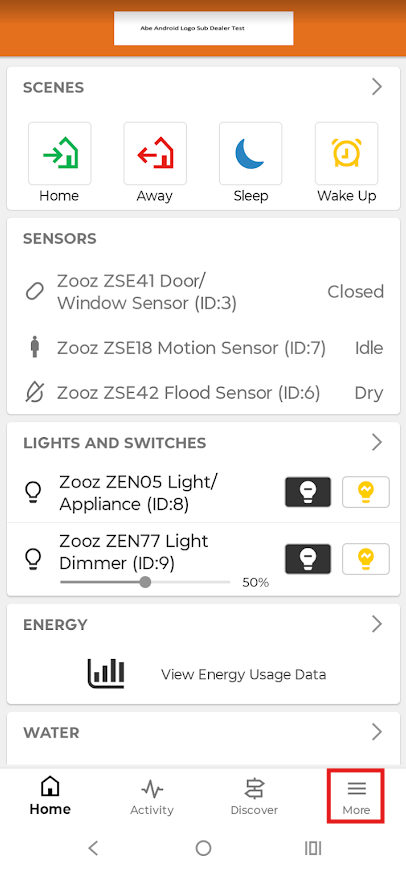
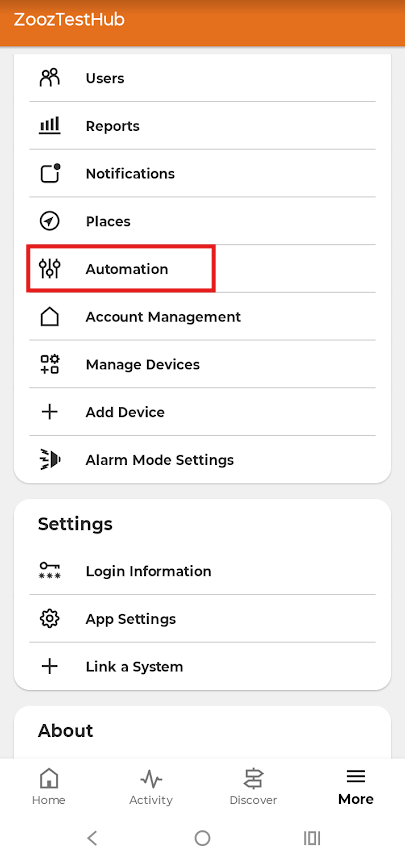
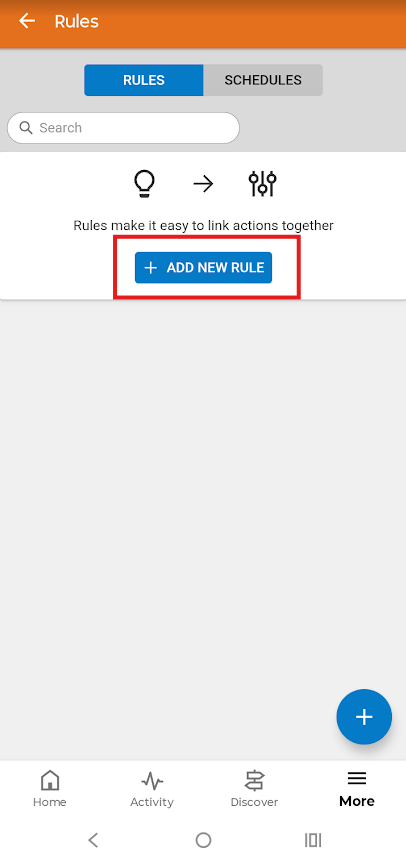
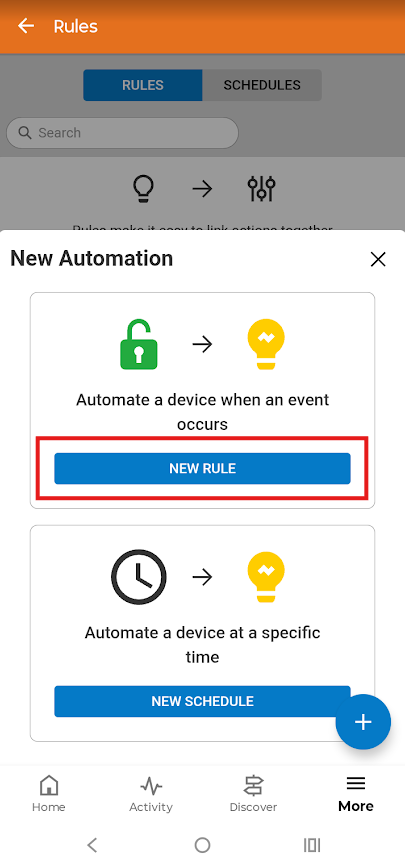
4. For this example, we're selecting New Rule under the category "Automate a device when an event occurs."
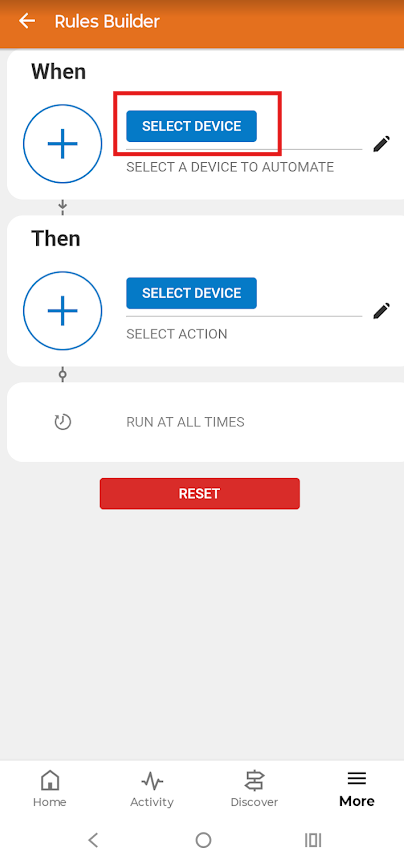
5. Under "When," click Select Device.
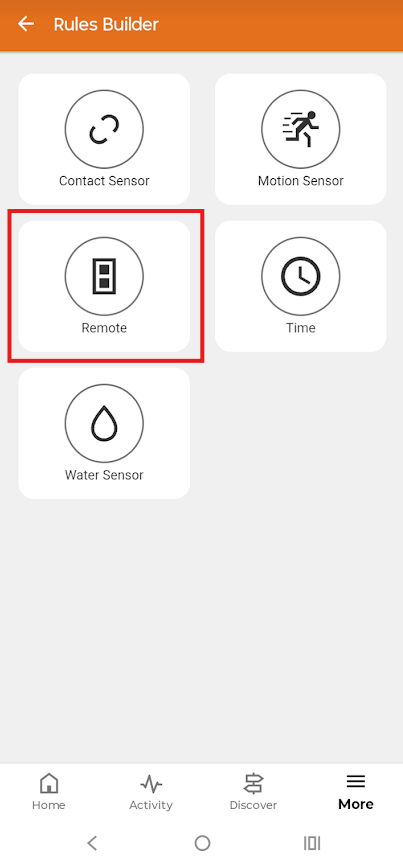
6. Select Remote.
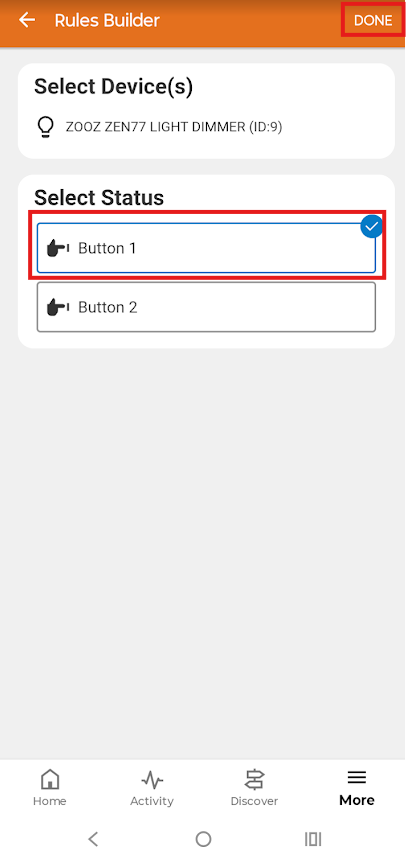
7. Select if you want to utilize Button 1 (upper paddle) or Button 2 (lower paddle) as your scene trigger, then click Done.
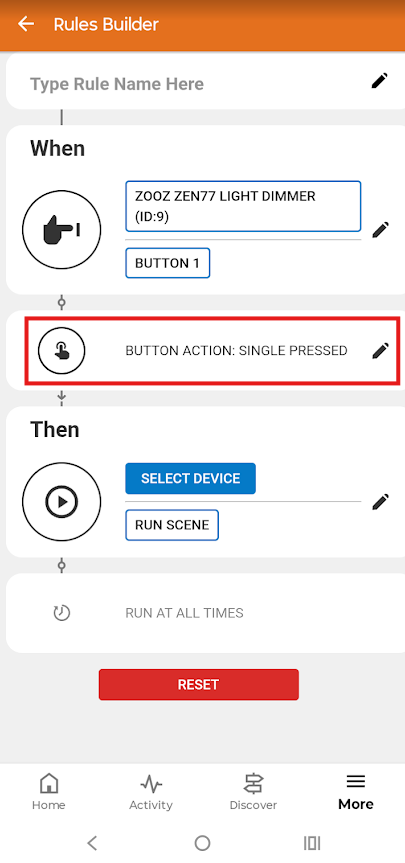
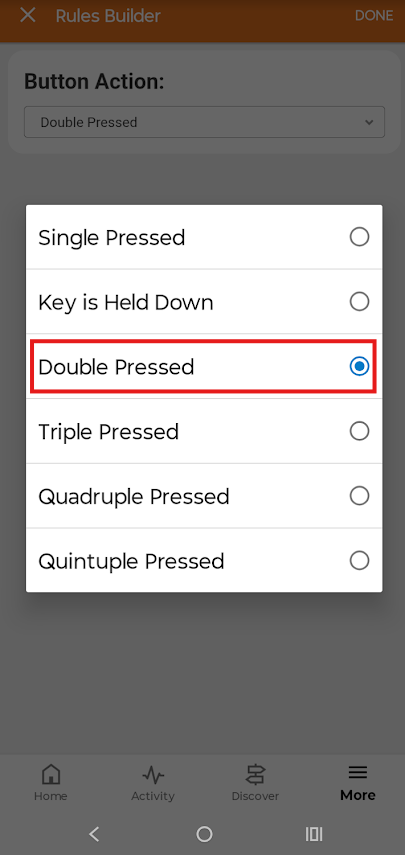
8. Single press is selected by default; to edit this click on Button Action.
9. Choose the action; in the example below we're selecting Double Pressed.
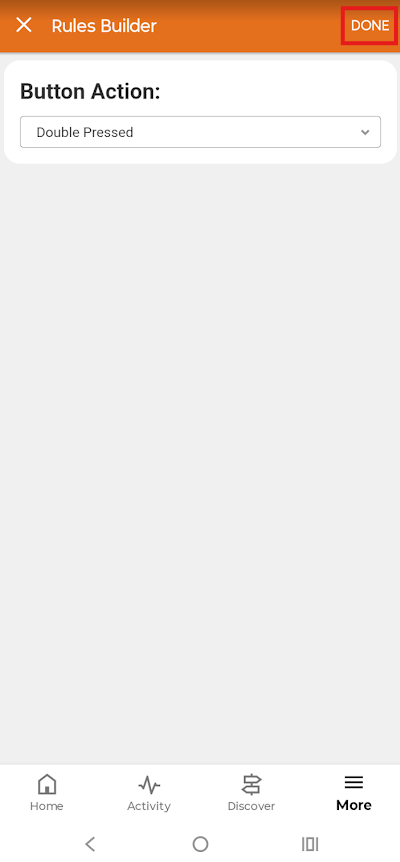
10. Once you've selected your trigger, click Done.
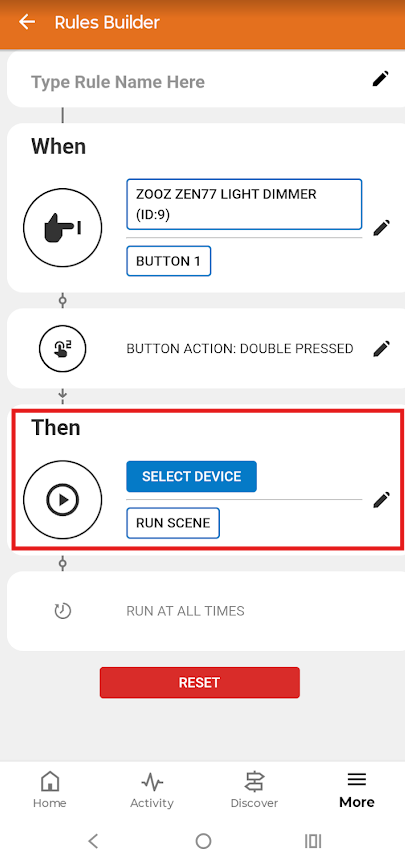
11. If the trigger portion of your rule is correct, click Then.
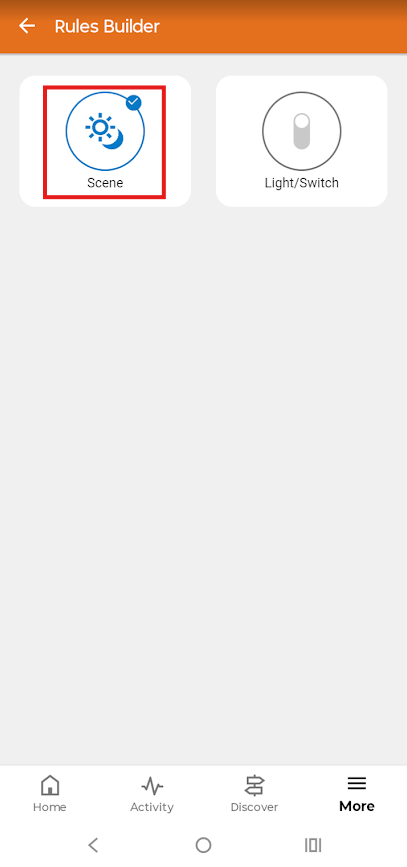
12. Select Scene. The app will not allow you to select a device here, only scenes can be triggered.
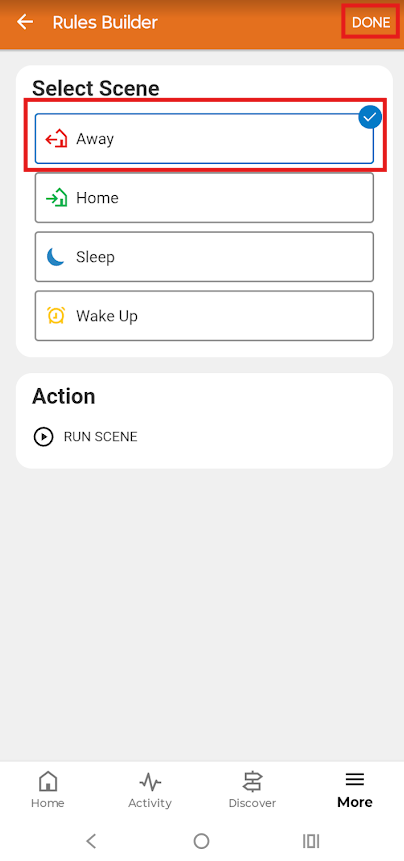
13. Select the scene you want to run. Below, we've selected the Away scene. Click Done.
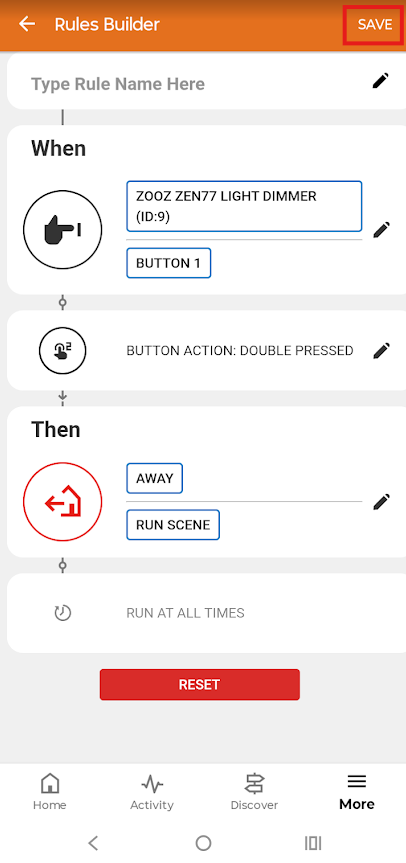
14. Review your scene and make any changes. Click Save when done.
15. Now, anytime you double click the upper paddle on the ZEN77, it will run the Away scene
If you have any questions, let us know! Our team is ready to help.

