


Having trouble including your ZEN55 to the Z-Box? Let's start simple: give the exclusion process a try!
It may seem counter-intuitive, but the easiest way to resolve inclusion or configuration issues is by excluding the device first! Exclusion can be done at any time, even if a device has never been included to the hub! Another way to think of exclusion is as a hub-based reset..
Important Note: A steady, blinking green is the standard state for the device; as long as the unit has power, it will blink green at a steady pace. The device has an internal relay, which can turn on and off with a click of the Z-Wave button. This means that when you are attempting to include or exclude the device, the clicks need to happen as fast as possible; if the clicks are not completed fast enough, the relay will engage instead and the device will not enter inclusion or exclusion mode. You will know you have clicked fast enough when the LED indicator begins flashing rapidly.
ZEN55 Exclusion Steps
-
From the sidebar navigation menu of the Z-Box web interface, go to Settings by clicking on the gear icon.
-
You will be redirected to the Devices menu.
-
Click the red - Remove device button in the top right corner.
-
Select the Z-Wave Device option.
-
Get ready to activate your Z-Wave device and click Start.
-
Click the Z-Wave button on the device 3 times quickly (the LED indicator will start blinking green)
-
The Z-Box will confirm exclusion, and the LED indicator on the device will turn green for 2 seconds
Once the Z-Box confirms a successful exclusion, please try including the device again.
SmartStart and Z-Wave Long Range Inclusion Troubleshooting
If exclusion is not successful, if you have previously added this device to your hub, if SmartStart failed, or if the device will not include, please follow the steps below in order. Removing the device from the provisioning list generally resolves most inclusion issues:
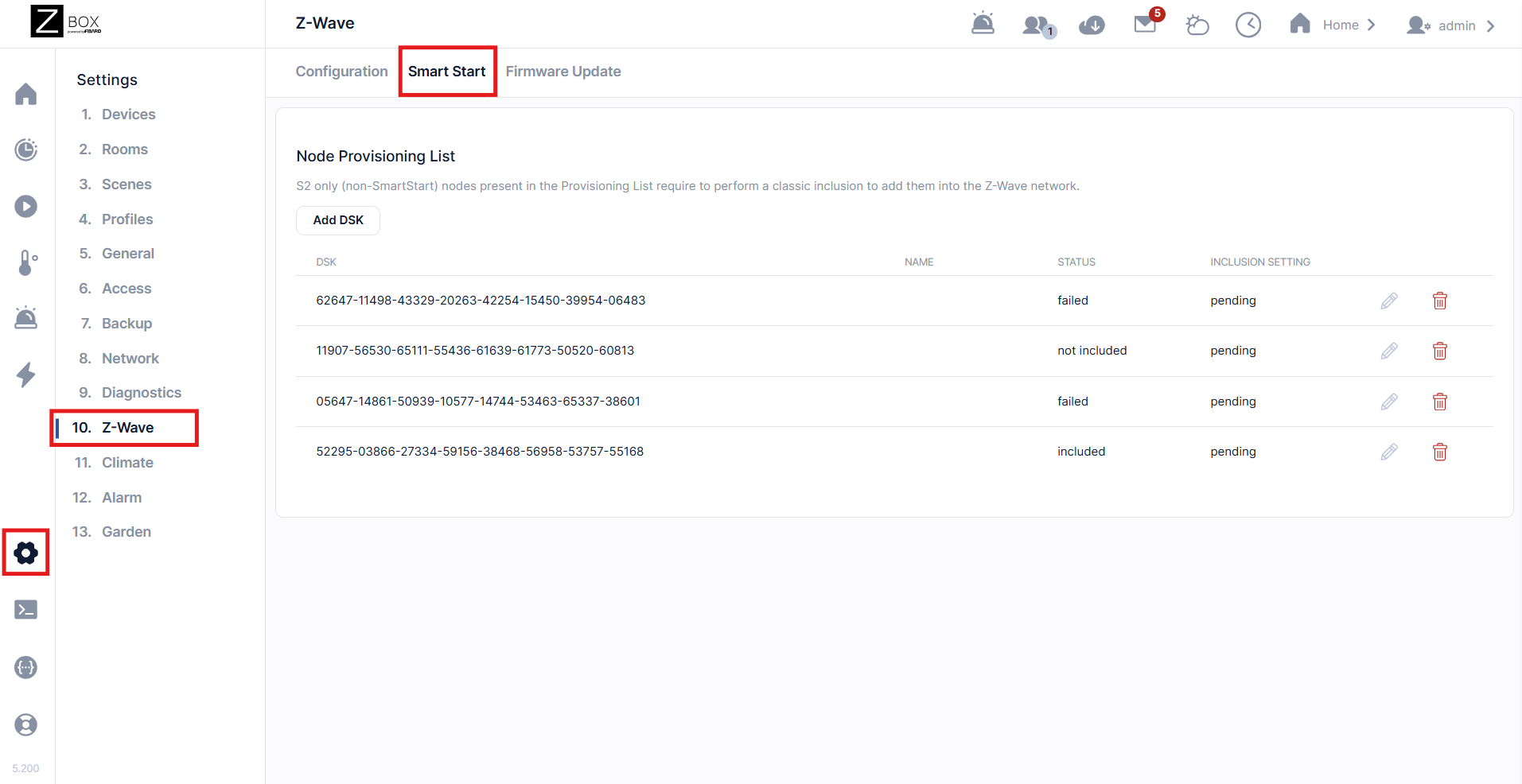
1. Check if the device is in the provisioning list. Click the Settings cogwheel > Z-Wave > SmartStart:
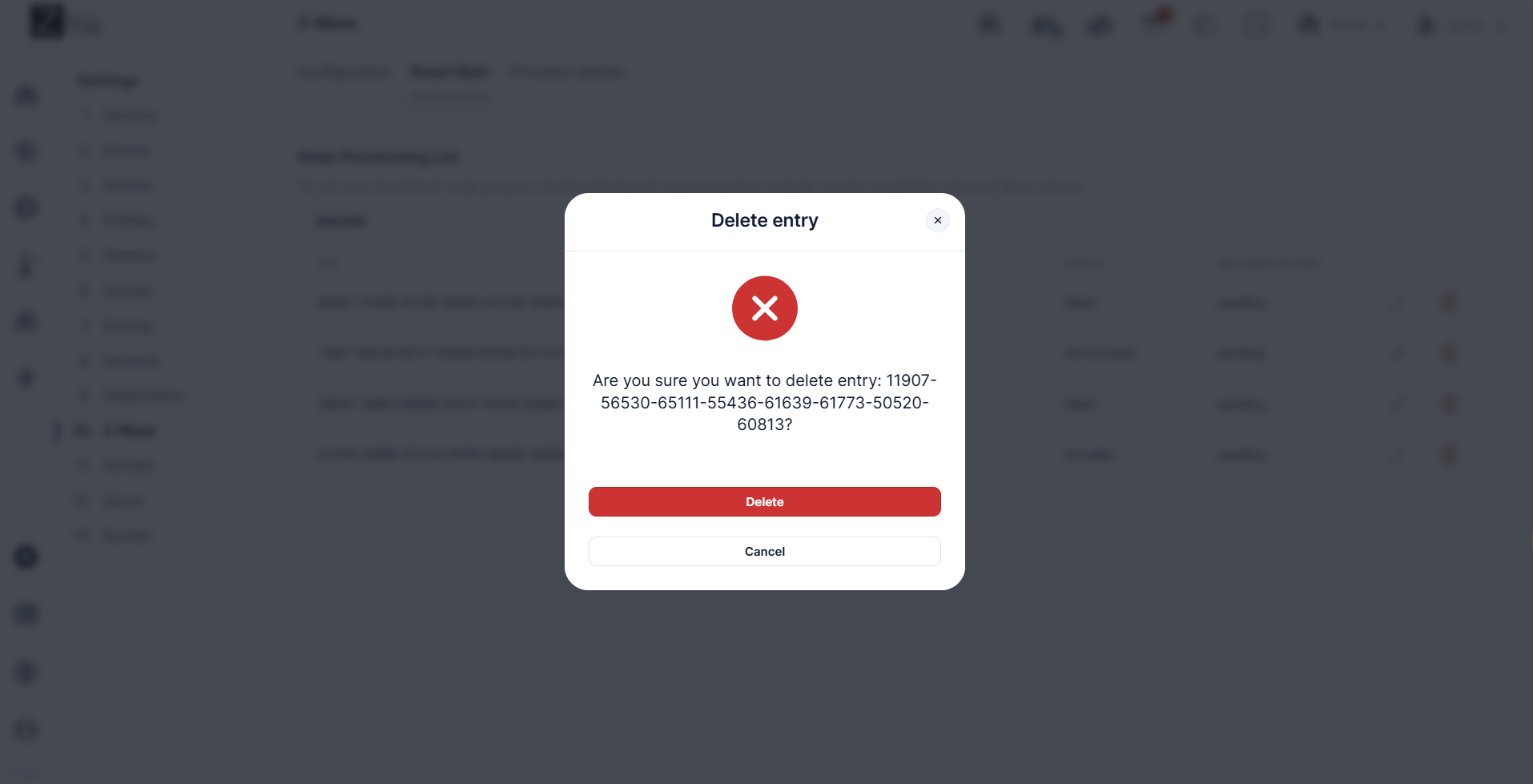
2. Click the Trash Icon (identify the relevant device by the DSK number). A popup will ask you to confirm. Click Delete:
3. The device has now been removed from the provisioning list.
4. Factory reset the ZEN55. After a successful reset, the device will disappear from the device list.
5. Turn off power to the ZEN55 at the breaker if you plan to include the unit via SmartStart / Z-Wave Long Range.
6. Go through the inclusion steps listed here to include the device (remember, power stays OFF until step 5).
Additional Troubleshooting
-
Try the exclusion process again in case the command from the first run weren't registered correctly.
-
Try bringing the hub closer to the device to see if it connects in a closer location. If it connects without issue in the new spot, then the first location may be out of range or there may be too many interferences in that area.
-
And if you find that your device is connected but it's not responded to remote commands, check out these tips for troubleshooting connectivity.
If you've tried all the above with no luck, let us know! Our team is ready to help.

