


The ZAC36 Titan Valve Actuator is now integrated with Alarm.com. A smart flood protection system can be the difference between thousands of dollars in water damage & a safe, secure home. Flooding causes an average of $8.2 billion in damages annually. Protect your home with this reliable hardware, backed by secure Z-Wave technology.
The Titan installs directly on your existing ball valve in just under two minutes, without any tools needed. You can mount it indoors or outdoors & it's strong enough to handle even the most stubborn valve. It comes with a connected leak probe that works offline to help you protect your home in all situations.
The ZAC36 Titan can be added to compatible Alarm.com systems* and will function as an open or close device. Once included, you can open and close the valve from your app at any time, as well as create a scene and/or rule that will close the Titan if a leak is detected from any connected leak sensor on your Alarm.com hub.
However, please note that Alarm.com is simply the cloud platform and mobile app used to access and manage your system remotely. It provides the automation, notifications, and account management, but it is not the physical Z Wave controller in your home. The actual controller is the hardware installed on site, which may be an Alarm.com automation hub, a security panel from Qolsys, a security panel from 2GIG, or another compatible gateway. This hardware determines which Z Wave devices can be added, how they appear in the interface, and which features are supported. Compatibility depends fully on the specific hub or panel firmware you have installed in your home. The ZAC36 can be included to some alarm panels, but will only display as a light switch unless used with one of the below hubs that has fully integrated the device. *The specific automation hubs listed below have integrated and fully support the ZAC36 Titan Valve Actuator (still no access to the advanced settings).
You can read more about Alarm.com compatibility specifically here.
Are you an Alarm.com installer? Scroll to the installer instructions for MobileTech instructions. Long Range? Scroll to the bottom of the article:
Follow the simple steps below to add your ZAC36 Titan Valve Actuator to Alarm.com:
Inclusion Steps
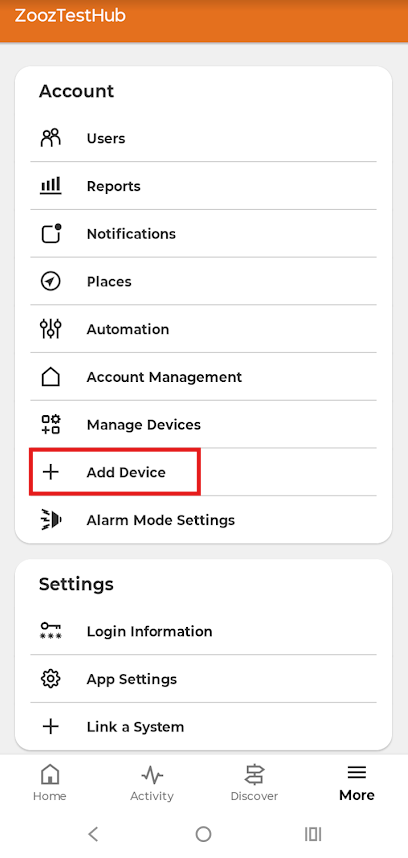
1. From the Alarm.com app, click More.
2. Click + Add Device.
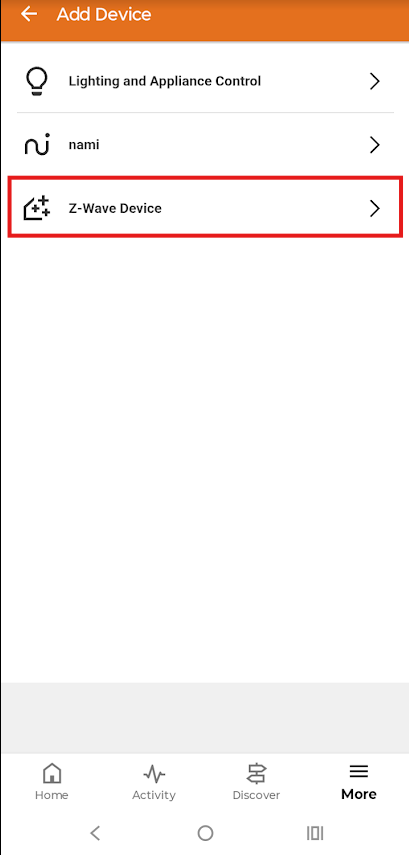
3. Click Z-Wave Device.

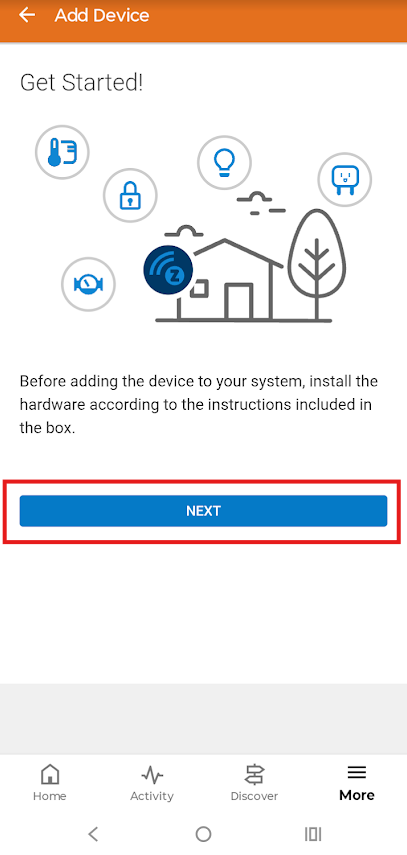
4. Click Next.
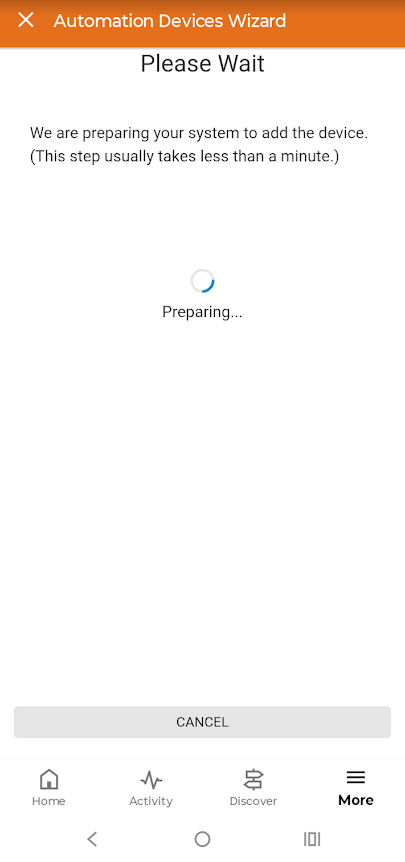
5. Wait while the system prepares.
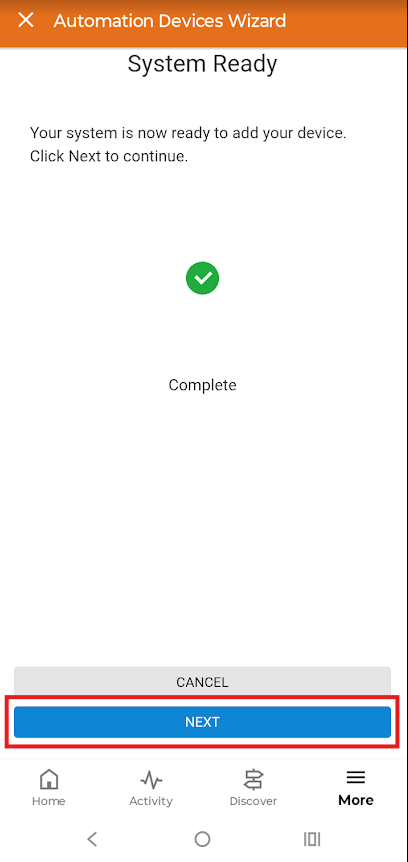
6. System ready > click Next.
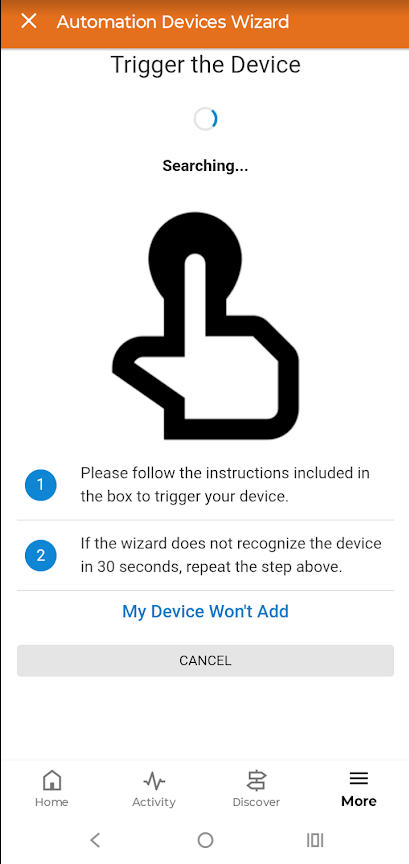
7. Tap the Z-Wave button on the device 3 times quickly - make sure you hear a beep each time you tap the button (if you don't hear it, please try again). It's a touch button so simply place your finger on it, there will be no tactile feedback like on a push button.
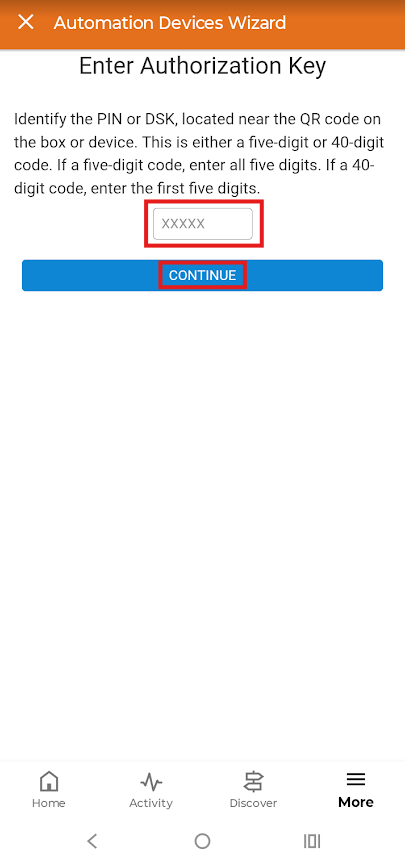
8. Enter the 5 digit Pin from the QR code on the device. Click Continue.
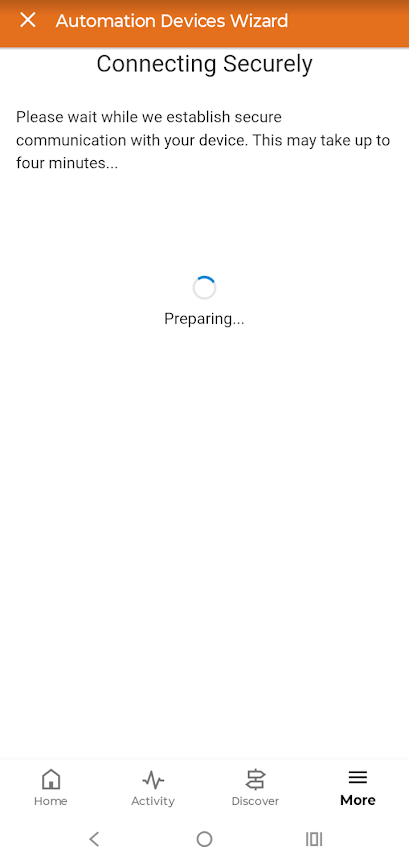
9. Wait while connection completes.
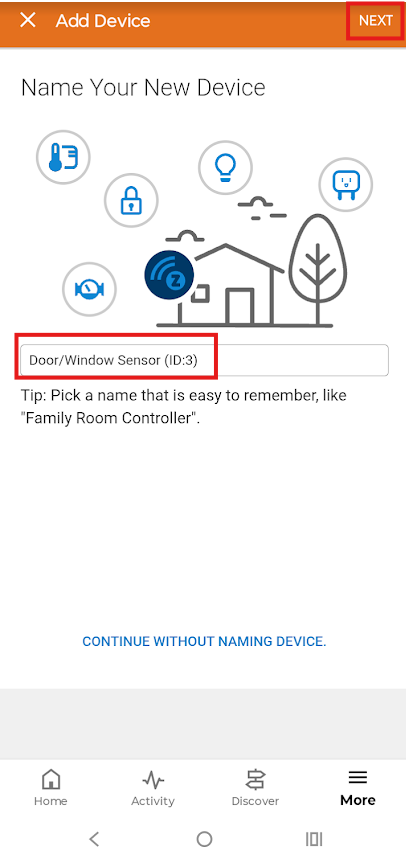
10. The ZAC36 will display as a Water Valve. You can keep the default name, or edit it here and click Next.
If you have trouble including the device, try excluding it first. This is a standard Z-Wave function and can be done with any Z-Wave device on any Z-Wave hub at any time, regardless of the devices inclusion status. This means that even if the device has never been included, is currently not included, or is even included to another hub that might not be responsive, you can still exclude it from the new hub. Exclusion simply acts as a soft Z-Wave reset that prepares the device for inclusion and resolves most inclusion or configuration issues. Check out the exclusion process for the ZAC36 on Alarm.com here.
Installer / Partner Portal / MobileTech Standard Mesh Inclusion Instructions
A Z-Wave network is established by putting a Z-Wave controller into Add Mode and triggering devices (or nodes) to join the network.
Tips for setting up a Z-Wave network:
-
Before adding devices to the network, make sure to put the devices in their final locations if possible. This way, the network can correctly identify the strongest communication pathway for each device.
-
Always add devices closest to the panel first, and work outwards from there. Devices that have already been added can relay the panel’s Add Mode signal to add farther devices to the network.
-
Verify each device adds successfully before moving on to the next device. The panel, Partner Portal, or MobileTech app indicates when a device has been added to the network.
To add Z-Wave devices using the Partner Portal with standard Z-Wave mesh inclusion:
-
Log into the Partner Portal.
-
Find the customer account.
-
Click Equipment.
-
Click Z-Wave Devices.
-
In Manage Devices, click Add a Z-Wave Device.
-
Wait for the bold message: Checking for new devices on the network.
-
Initiate inclusion on the ZAC36 Titan by tapping the Z-Wave button on the device 3 times quickly - make sure you hear a beep each time you tap the button (if you don't hear it, please try again). It's a touch button so simply place your finger on it, there will be no tactile feedback like on a push button
-
When a device is added successfully, it shows up on this screen following a 30-second delay.
-
Continue triggering devices. Several devices may be added to the network without re-entering Add Mode.
-
Once all desired devices are added, click Exit.
-
Devices should show up on the Alarm.com customer website and app, Partner Portal, and MobileTech app within 5 minutes of adding the devices.
To add Z-Wave devices using the MobileTech app with standard Z-Wave mesh inclusion:
-
Log into the MobileTech app.
-
Find the customer account.
-
If possible, move all Z-Wave devices to their final location on the property.
-
Tap Equipment.
-
Tap Z-Wave Devices.
-
Tap to expand Z-Wave Actions.
-
Tap Add Z-Wave Devices.
-
Wait for the bold message: Checking for new devices on the network.
-
Initiate inclusion on the ZAC36 TItan by tapping the Z-Wave button on the device 3 times quickly - make sure you hear a beep each time you tap the button (if you don't hear it, please try again). It's a touch button so simply place your finger on it, there will be no tactile feedback like on a push button.
-
When a device is added successfully, it shows up on the screen following a 30-second delay.
-
Continue triggering devices. Several devices may be added to the network without re-entering Add Mode.
-
Once all desired devices are added, tap Exit.
-
Devices should show up on the Alarm.com customer website and app, Partner Portal, and MobileTech app within 5 minutes of adding the devices.

If you have trouble including the device, try excluding it first. This is a standard Z-Wave function and can be done with any Z-Wave device on any Z-Wave hub at any time, regardless of the devices inclusion status. This means that even if the device has never been included, is currently not included, or is even included to another hub that might not be responsive, you can still exclude it from the new hub. Exclusion simply acts as a soft Z-Wave reset that prepares the device for inclusion and resolves most inclusion or configuration issues. Check out the exclusion process for the ZAC36 on Alarm.com here.
Long Range Inclusion Instructions for Installer / Partner Portal / MobileTech
Alarm.com supports Z-Wave Long Range (Z-Wave LR). Z-Wave LR allows for even more Z-Wave devices on a single system without the need for repeaters. Both the panel and device must be Z-Wave LR-enabled.
To add the ZAC36 700 LR via Long Range inclusion using the Partner Portal:
-
Log into the Partner Portal.
-
Find the customer account.
-
Click Equipment.
-
Click Z-Wave Devices.
-
In Manage Devices, click Manage S2 & SmartStart Keys.
-
Click Add Key.
-
Enter a name for the ZAC36 Valve Actuator.
-
Use a USB barcode scanner and enter the data in QR Code or click Scan to use the computer/mobile device's built-in camera to scan the device's barcode and automatically populate the information. Note: The internet browser must be given permission to access the built-in camera before it can scan the barcode.
-
Click Add Device.
-
In the Add a Device Key check Use Long Range. Note: This option will not be available if the device or panel do not support Z-Wave LR.
-
Click Add Device.
-
The device should now automatically be enrolled into the Z-Wave network when powered up. Multiple device keys can be added before powering up if desired. Note: If adding multiple device keys, it is recommended to power each device up about a minute apart to ensure a smoother enrollment.
-
Once included, the device will appear as Included in the Active Keys column on the Manage S2 & SmartStart Keys page.
To add the ZAC36 700 LR via Long Range inclusion using the MobileTech app:
-
Log into the MobileTech app.
-
Find the customer account.
-
Tap Equipment.
-
Tap Z-Wave Devices.
-
Tap to expand Z-Wave Actions.
-
Tap Scan Device To Add.
-
Tap Scan Now to scan the device's barcode and automatically populate the information.
-
In Device Name enter a name for the device.
-
Tap Use Long Range to enable Z-Wave LR. Note: This option will not be available if the device or panel do not support Z-Wave LR.
-
Tap Add Device.
-
The device should now automatically be enrolled into the Z-Wave network when powered up. Multiple device keys can be added before powering up if desired. Note: If adding multiple device keys, it is recommended to power each device up about a minute apart to ensure a smoother enrollment.
-
Once included, the device will appear as Included in the Active Keys column on the Manage S2 & SmartStart Keys page.
If you have trouble including the device, try excluding it first. This is a standard Z-Wave function and can be done with any Z-Wave device on any Z-Wave hub at any time, regardless of the devices inclusion status. This means that even if the device has never been included, is currently not included, or is even included to another hub that might not be responsive, you can still exclude it from the new hub. Exclusion simply acts as a soft Z-Wave reset that prepares the device for inclusion and resolves most inclusion or configuration issues. Check out the exclusion process for the ZAC36 on Alarm.com here.
Please don't hesitate to reach out with any questions you may have!

