


Before programming your ZEN56 on SmartThings, you'll want to ensure you have the custom driver installed and correctly assigned to the device.
At this time, all functionality is availbale for iPhone users; unfortuantely, there is currently no way to program a color from routines on the SmartThings Andriod app; this has been confirmed as a SmartThings bug/platform issue, and is not limited to our custom driver. This issue is also present on the standard SmartThings RGBW driver. We will update this page once SmartThings provides a resolution. iOS is not affected, and you can program colors via routines as expected.
Programming the ZEN56 RGBW Dimmer
The Edge driver allows you to set your preferred color via routines, and you can set different colors in different routines.
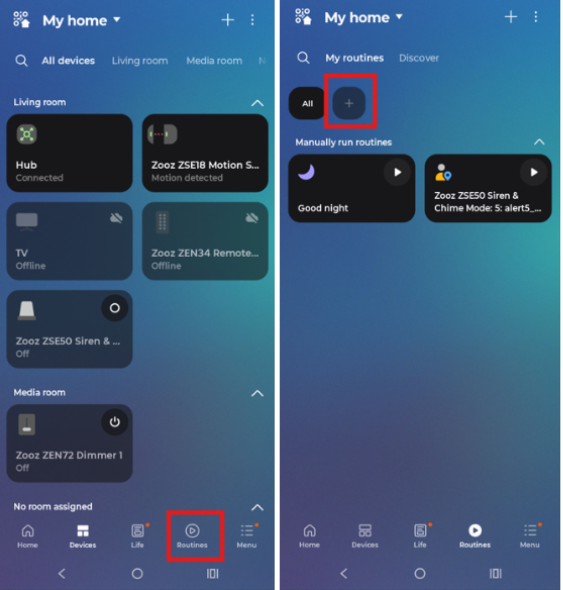
1. From the SmartThings app Home screen, select Routines.
2. Select the + button.
3. Under If, click + Add condition.
4. For this example, we're simply using the manual run option, but you can select any trigger. Click Done when you've finished the If section.
5. Under Then, click + Add action.
6. Click Control devices.
7. Select the Zooz ZEN56 RGBW Dimmer.
8. Here, we're having the RGB channel turn on to Blue, and the White Channel is turned to Off. We've also set a delay of 6 seconds, and then the Red Channel will turn on.
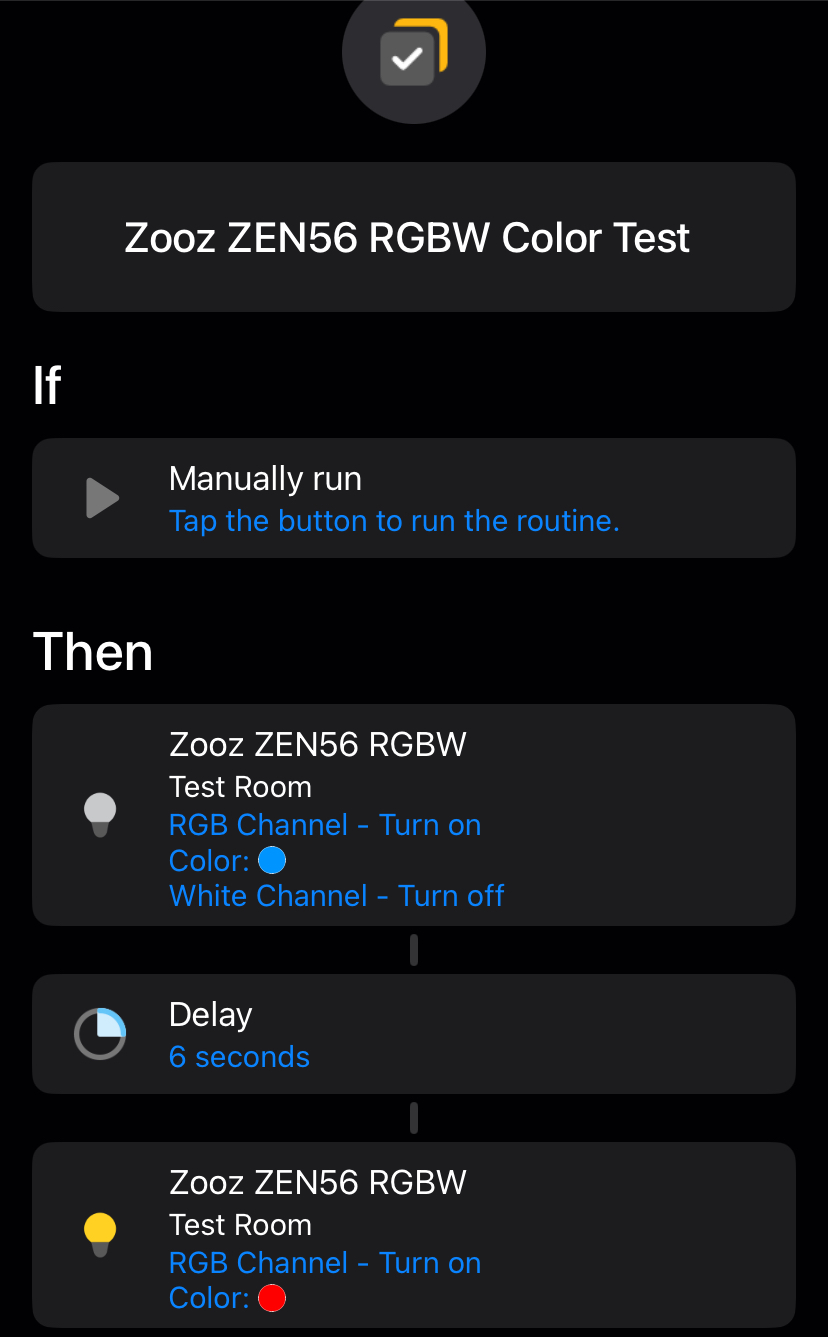
You can repeat the above process and set the desired color for any scene.
Please let us know if you have any questions!

